
Reports
On this page
Reports are shareable snapshots of brand evidence for a chosen date range. They do not run new prompts; they package the data you already have into a public, read-only view.
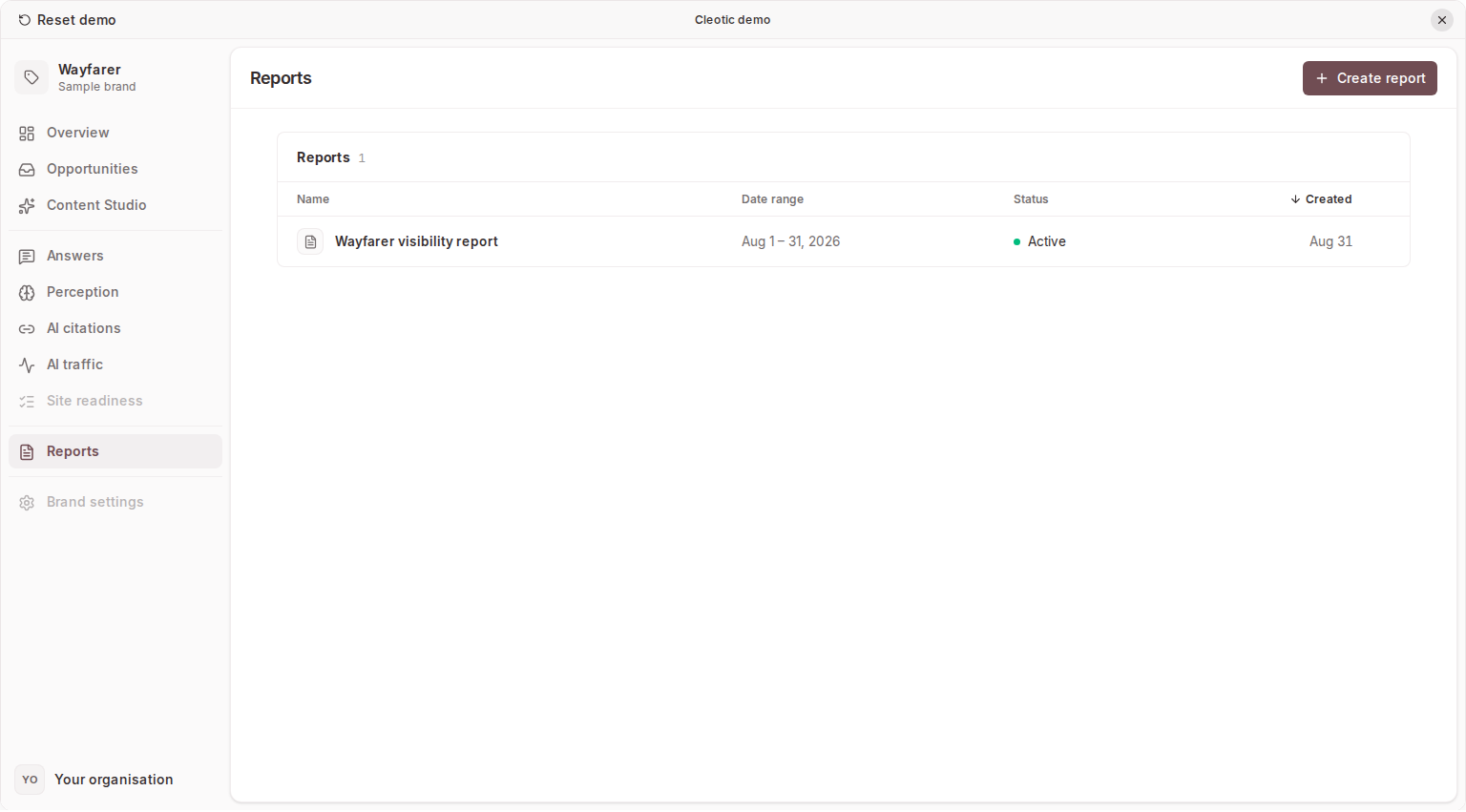
Report contents
Each report uses the same structure: a narrative summary, core visibility metrics, answer evidence, source signals, and recommended actions where enough data is available.
Date range scope
Reports use a single date range. The range is chosen during creation and applies to the whole report. Reports follow your organisation's current history retention. If you choose a range that reaches further back than your current plan allows, Cleotic creates a report from the available window and explains the truncation to viewers.
What a report can include
Depending on the available data, a report can contain:
- Narrative summary
- Visibility rankings
- Share of voice and visibility trends
- Answer gaps
- Citations
- Per-segment breakdowns
- Top action previews
Narratives are generated where available. If a narrative is unavailable or fails, the report still shows the underlying charts and data.
Creating a report
- Open a brand and go to Reports
- Click Create Report
- Choose a date range
- Optionally set a report name
- Create the report, open its public view to review the contents, then copy the link
Public report behaviour
Each report has a public URL. Anyone with an active link can view it without a Cleotic account. Review its contents before sharing it outside your team.
The public page can:
- Show the report summary and core metrics
- Present sections in a consistent report order
- Let viewers switch between segments when the report includes more than one
- Show a per-segment overview when no single segment is selected
If older history is outside the report owner's current retention window, the public page shows a neutral notice with the visible date range. This helps stakeholders understand the report without implying the data is broken or missing.
Managing reports
From Reports you can review, copy, revoke, and delete reports. Revoking disables the public link without deleting the report record. It cannot recall copies that viewers have already saved.
Limits and unavailable history
Reports follow the organisation's current retention window. A wider report range cannot restore unavailable history. See Plans and usage for capacity and retention.
If the public link does not open, check that the report has not been revoked or deleted. Create a new report when you want to share evidence collected after the original snapshot.
Related
Updated